

Load from a database
Load tables from an external database with the Snowflake data source connector, against a sample database that needs no credentials of your own.
A side trip from Get your data in: a source behind credentials rather than a public URL. Every database connector Keboola has works this way, so walking one teaches all of them.
Where you are: you can load a public file already. When you finish: three tables in Storage, pulled out of a live database.
Before you start
You need
- A Keboola project. No project yet? Get a project.
Keboola’s sample Snowflake database, whose login is printed on this page.
Depending on the tab you use
- Prompt tab: Kai, the Kai Agent button in the project's top bar, on supported stacks. The first time, an organization admin switches it on; see Get started with Kai.
- UI tab: only a browser.
- CLI / API tab: kbagent, connected to your project with write access.
Three ways to do this, one page. They are alternatives, not steps. Prompt is what you paste into Kai; UI is the same task click by click, for when you want to see where each setting lives; CLI / API is the same task from a terminal, with the raw request beside it. Pick one tab and carry on; your choice follows you to the next page.
Kai asks before it changes anything: expect one approval dialog per object it creates, showing the exact configuration it is about to write. Questions that only read do not ask. If confirming each one gets tiring, pre-approve tools in tool permissions. The chat's plan mode button is a different thing: Kai writes the steps down and asks you to approve the plan before it starts, and then still asks for each change. Use it when you want to read the plan first, not to save clicks.
If a step builds something other than what this page describes, say so in the same chat; it edits what it made. Nothing here is one-way.
The sample database
Section titled “The sample database”All three paths connect to the same place, a read-only database Keboola keeps for this walk. None of it is secret:
| Field | Value |
|---|---|
| Host name | kebooladev.snowflakecomputing.com |
| Username, Password, Database, Schema | HELP_TUTORIAL |
| Warehouse | DEV |
Set it up
Section titled “Set it up”Database connectors are configured like any other data source (integration setup). Open Kai Agent in the top bar and say what you want connected, not what your credentials are:
Set up a Snowflake data source connector against our sample database and load the OPPORTUNITY,ACCOUNT and USER tables into Storage.Check: three new tables, and Kai names the bucket it put them in.
-
Go to Components and click Add Component.

-
Search for the Snowflake data source.
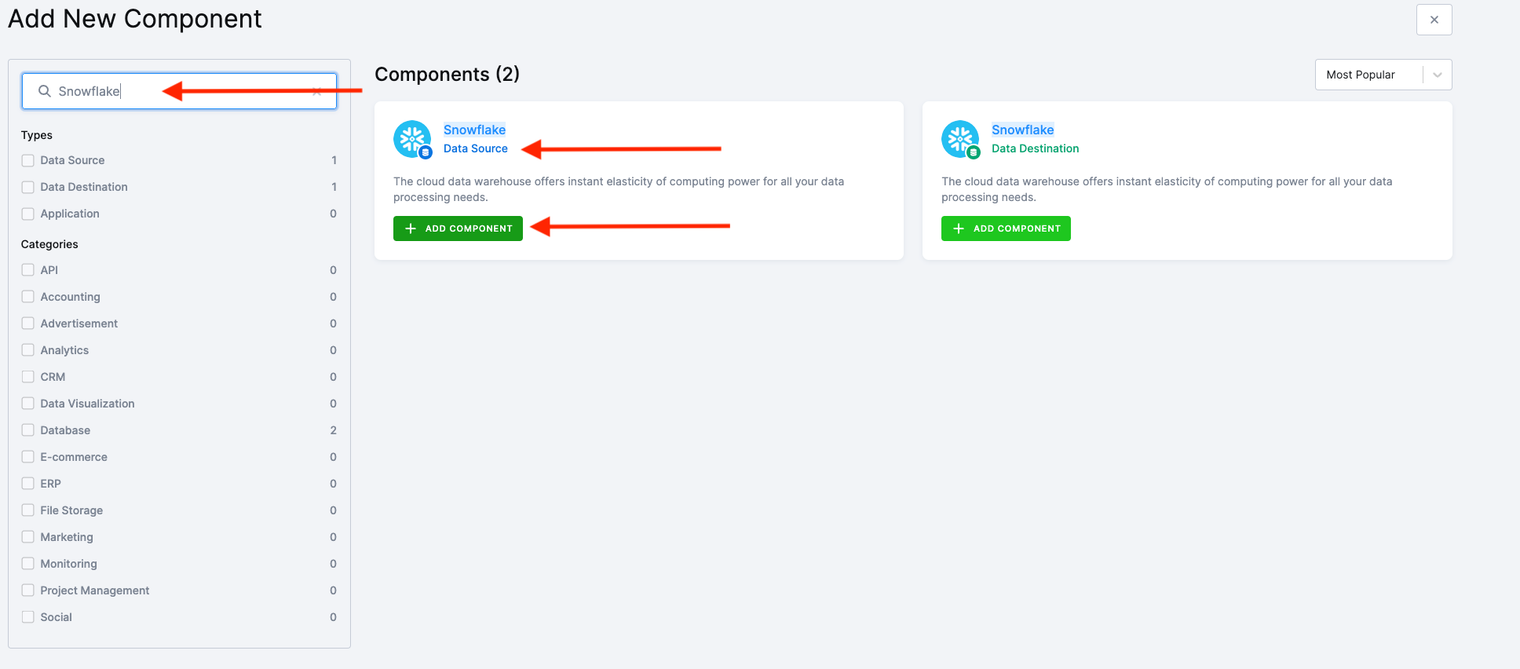
-
Click Add Component, then Connect To My Data.
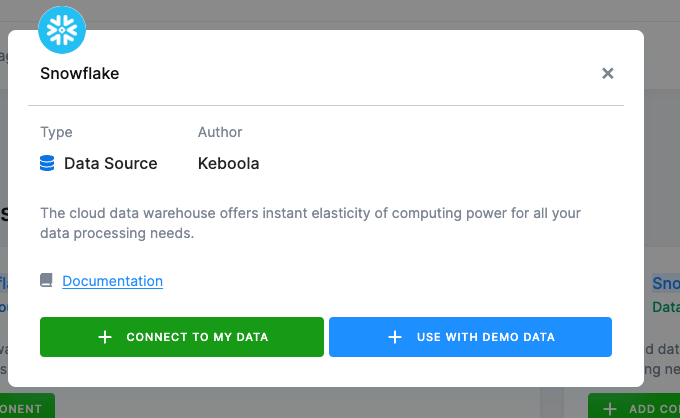
-
Name the configuration, describe it, and click Create Configuration.
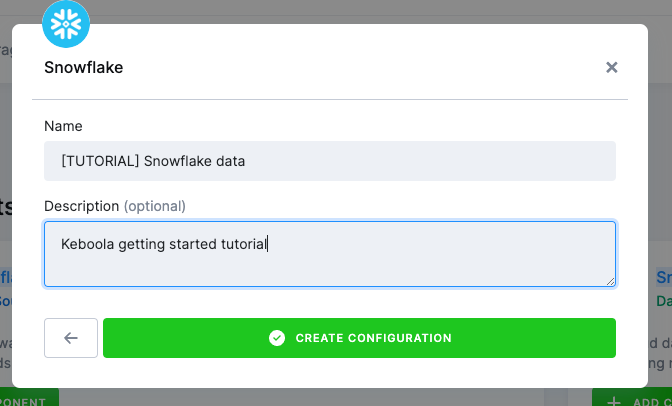
One configuration is one database connection, so this walk needs exactly one. A project that reads two databases has two.
-
Enter the credentials from The sample database above.
-
Click Test Connection and Load Available Sources.
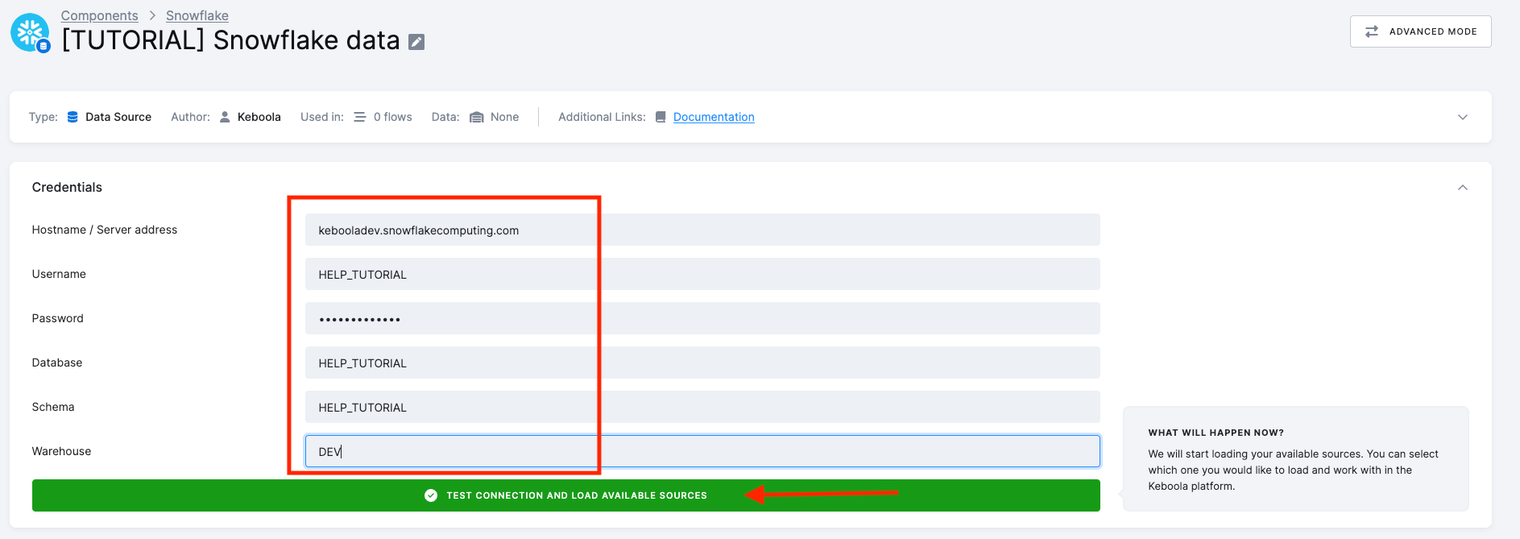
Once it saves, the Password field shows a long value that is not what you typed. That is expected: Keboola encrypts the field on save and keeps only the cipher, so nothing reads the original back out, not the form and not the API. You will see the same thing anywhere a field’s name starts with
#, including the JSON in the CLI / API tab. -
Under Select sources, pick
OPPORTUNITY,ACCOUNTandUSER.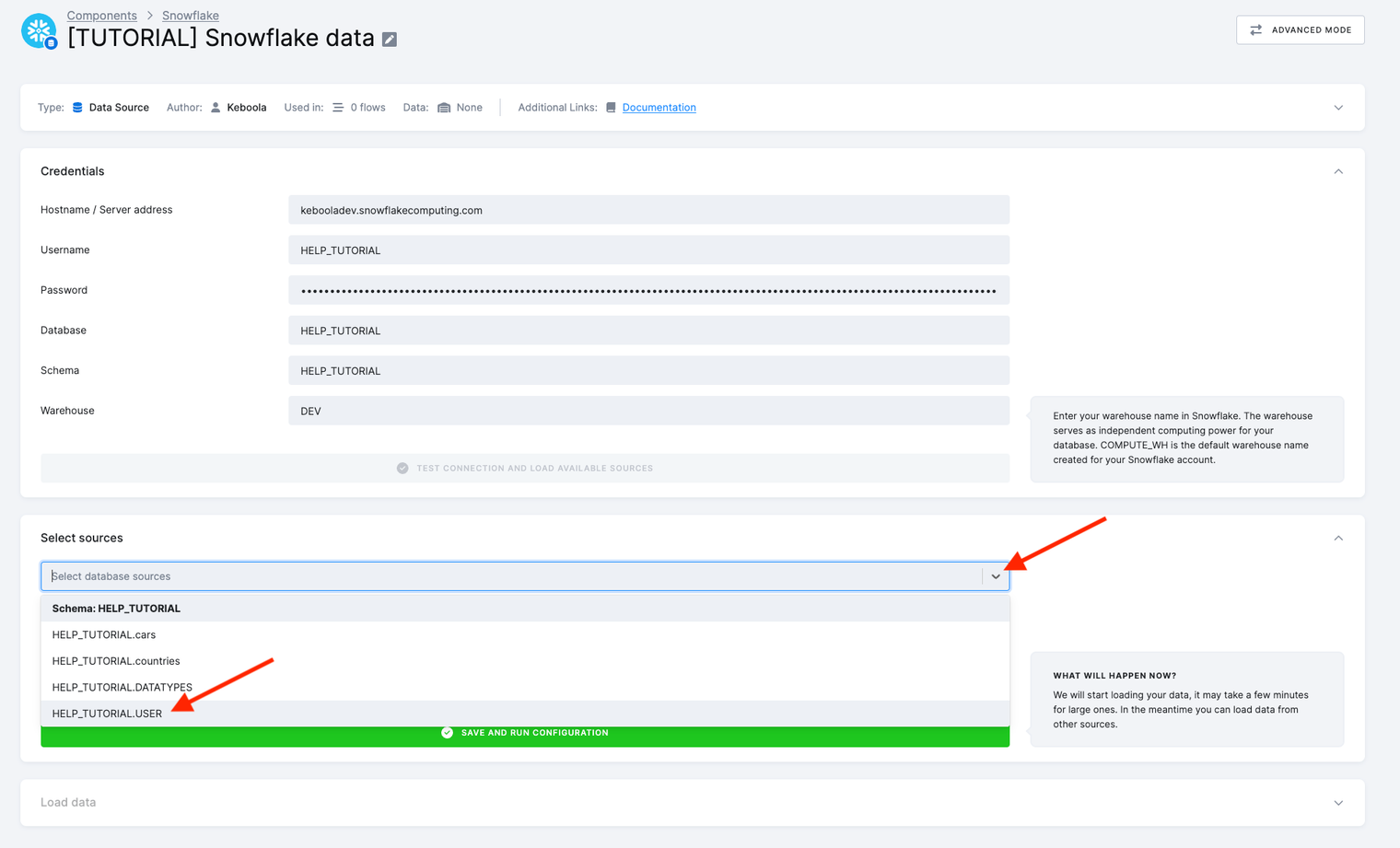
-
Click Save and Run Configuration. The run connects to the database, executes one query per table, and writes the results into Storage.
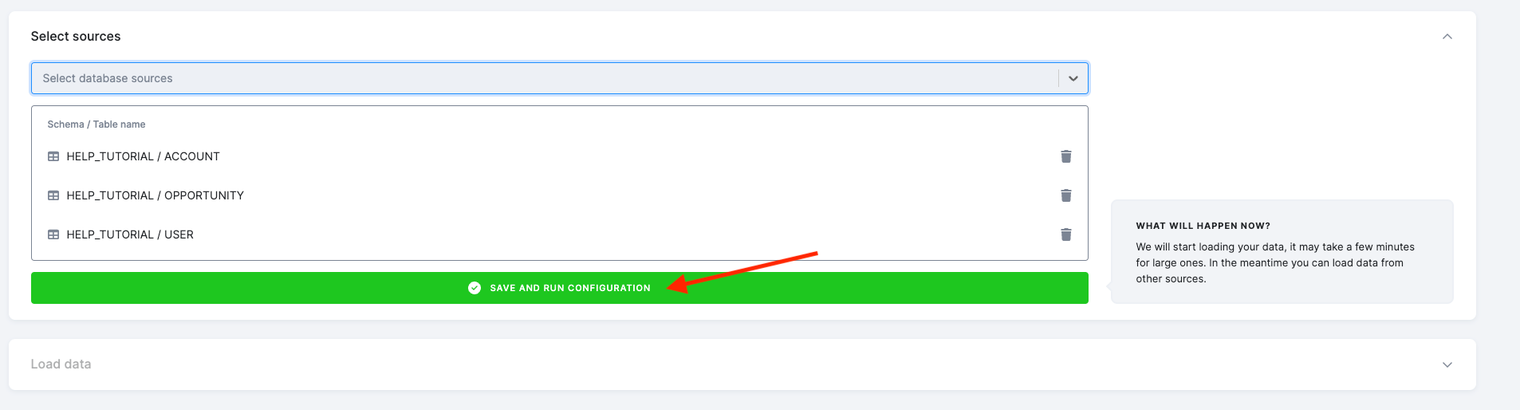
Advanced Mode, top right of the configuration page, is where incremental fetch, incremental load and hand-written SQL live. This walk does not need them.
Every click above is an API call underneath, and kbagent is the same calls from a
terminal. It needs to be installed and pointed at your project once with
kbagent project add, which stores the connection under an alias. The examples use docs-demo,
substitute yours.
The connection
The configuration holds the credentials and nothing else. Put them in a file, because this one is worth reading before you send it:
{ "parameters": { "db": { "host": "kebooladev.snowflakecomputing.com", "port": 443, "database": "HELP_TUTORIAL", "schema": "HELP_TUTORIAL", "warehouse": "DEV", "user": "HELP_TUTORIAL", "#password": "HELP_TUTORIAL" } }}The # in front of password is the whole security model: Keboola encrypts any value whose key
starts with one when the configuration is saved, and encryption is one-way, so nothing reads it
back out again. Add --dry-run to the command below to see the request and check it against the
component’s schema without creating anything:
kbagent config new --project docs-demo --component-id keboola.ex-db-snowflake --name "Sample Snowflake" --push --no-files --configuration @snowflake-db.jsonIt prints the new configuration ID. If you would rather the password never sat in a file or a shell history in the clear, encrypt it first and paste the cipher into the JSON instead.
One row per table
Each table you extract is a row on that configuration, the same list the UI’s Select sources builds:
{ "parameters": { "name": "ACCOUNT", "outputTable": "in.c-sample-snowflake.ACCOUNT", "table": { "schema": "HELP_TUTORIAL", "tableName": "ACCOUNT" }, "incremental": false, "primaryKey": [], "enabled": true }}kbagent config row-create --project docs-demo --component-id keboola.ex-db-snowflake --config-id <config-id> --name ACCOUNT --configuration @account-row.jsonRepeat for OPPORTUNITY and USER, changing the name, the source table and the output table
together. outputTable is the one the UI decides for you. Here you choose the bucket, so you
know its name in advance.
Run it
kbagent job run --project docs-demo --component-id keboola.ex-db-snowflake --config-id <config-id> --waitkbagent storage tables --project docs-demo --bucket-id in.c-sample-snowflakeCheck it worked
Section titled “Check it worked”Three tables, in one bucket:
| Table | Rows |
|---|---|
OPPORTUNITY | 639 |
ACCOUNT | 275 |
USER | 28 |
If it goes wrong
Section titled “If it goes wrong”- The connection is refused. A typo in the host or the warehouse. All four of username,
password, database and schema are the same word here,
HELP_TUTORIAL, which is easy to read past. The UI has a Test Connection button for this; the CLI finds out when the job runs. - The job succeeds but a table is empty. The row is pointing at a table name that exists in a
different schema.
schemainsidetableis per row, not inherited from the connection. - You want the configuration back after deleting it.
kbagent config deletemoves it to the trash rather than destroying it, and prints the command that undoes it. The UI has the same trash, under Delete Configuration. - You need only new rows next time. That is incremental fetch, in Advanced Mode and in the row’s parameters. Database data sources covers it.
Going further
Section titled “Going further”- Load from Google Sheets is the other side trip: a source behind a consent screen rather than a password.
- Data source connectors lists every database Keboola reads.